Introduction to Outlook Errors in PST File
Microsoft Outlook PST files are prone to corruption. There are several error messages displayed in Outlook while opening a corrupt Personal folder (PST) file. So we tried to describe all possible common Outlook errors and solutions. For each PST error, we have described its symptoms and also explained its precise reason.
Following Are the List of PST Errors
- The file Outlook.pst is not a personal folder file.
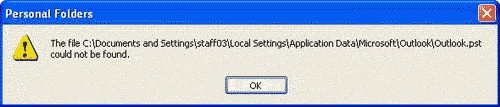
- The file Outlook.pst could not be found.
- Error 0x80040116, Outlook.pst cannot be accessed.
- Data error Outlook.pst could not be accessed. Cyclic redundancy check.
- The file Outlook.pst could not be accessed. Unable to display the folder.
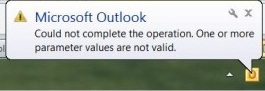
- Can’t move the items. Could not complete the operation. One or more parameter values are not valid.
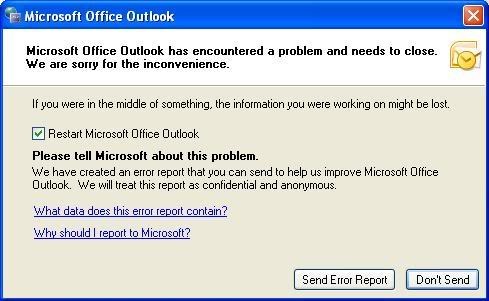
- Microsoft Outlook has encountered a problem and needs to close. We are sorry for the inconvenience.
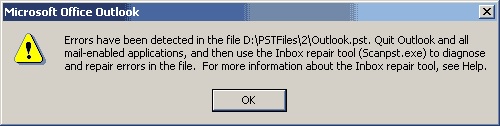
- Errors are detected within the file computer Outlook.pst. Quit all mail-enabled applications and Outlook, so run Scanpst.exe to diagnose and fix errors within the file.
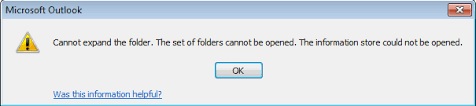
- The file Outlook.pst cannot be opened. Cannot expand the folder. The set of folders cannot be opened.
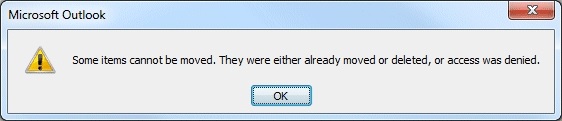
- Can’t move the items. The items could not be moved. It was either already moved or deleted, or access was denied.
Outlook Errors & Solutions
Following are the error messages displayed when a damaged or corrupted Outlook personal folder (PST) file is opened:
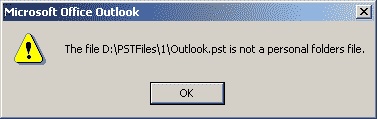
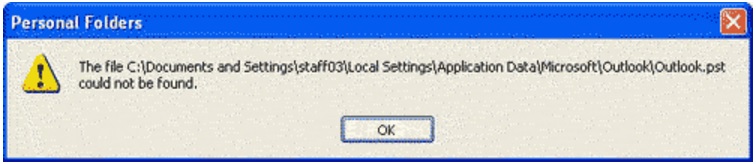
- Corruption of Outlook PST file.
- Outlook PST file is located on a network server that is unavailable.
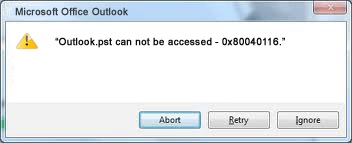
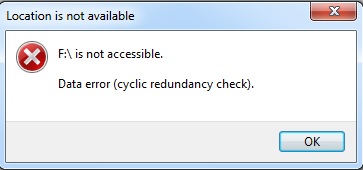
- Corrupted Outlook PST file.
- Some properties of the items may be corrupted or invalid, which makes the copy or move operation failsrnThen this error occurs.
- Corrupted Outlook PST file.
- The hard disk where your Outlook PST file is located has some bad sectors.
- Then this error occurs.
- Corrupted Outlook PST file.
- Some properties of the items may be corrupted or invalid, which makes the copy or move operation fails.
Microsoft Outlook comes with an internal tool known as Inbox Repair Tool or ScanPST to fix small issues. But there are many cases where ScanPST does not work and is unable to resolve the Outlook problems. The top errors that relates to ScanPST are as follows:
Errors Related to Inbox Repair Tool
- The Inbox Repair Tool does not recognize the file Outlook.pst
- Scanpst.exe not responding during repair and hangs endlessly
- The PST file fixed by Scanpst.exe is empty and doesn’t contain the required information
- “Fatal Error 80040818”
- “An unknown error prevented access to the file. Error 0x80070570: The file or directory is corrupted and unreadable”
- Loss of data while trying to repair Corrupt PST files
- Scan interrupted due to an error. No changes have been made to the scanned file
- An unexpected error prevented file access
If your PST files are corrupted, then try to repair and fix it by using the Inbox Repair Tool i.e. a free tool that comes with Outlook to deal with corruption. If it fails to do so, we will recommend the best PST Repair Tools to resolve and fix any kind of mentioned error in a PST file.
How to Prevent PST File Corruption?
There are certain measures that should be taken to prevent PST file from corruption:
- Do not over-limit your PST file because it slowdowns many operations in a PST file. Fetch knowledge about your PST file size limit and approach to leave some space left.
- Shutting down Outlook abnormally usually cause PST file to corrupt. So try to prevent it from abnormal Shut-down. So always exit Outlook before Shutting down your Computer.
- Microsoft Outlook lockdowns while operating large emails at one time. So try to not operate them in a batch.
- Network Environment cannot support dense access of the PST file and causes frequent corruption of PST file corruption. So try to store it on local computers, not on a remote drive or server.
- Some Anti Virus programs damage the PST file. Microsoft OneCare may even delete PST files and Antivirus is also needed for protecting our PST file because it contains a lot of emails and useful data. So always be careful to choose one.
- Some Add-Ins may cause PST files to corrupt. If PST gets corrupted frequently disable the Add-ins.
- Try to Backup your PST file on a weekly basis.
With this, we conclude the list of top errors in PST file. This blog contains common Outlook errors and solutions along with the reasons. In case, you are suffering from such errors, you can try the Inbox Repair Tool to fix them. Of course, if you get errors while using this free tool, we also have recommended the best software solutions for you.