List of Major PST File Too Big Scenarios
There are a number of issues that cause oversized PST file errors. So here we will be discussing how to overcome all such issues based on the scenario. PST File Too Large To Open In case the size of the PST file reaches its defined limit it won’t Open. The user must reduce its size to be able to open and view it. Outlook PST File too Big to Move It is quite difficult to move large PST file. In order to transfer oversized PST files, the user needs to check the destination folder whether it supports large files or not. PST File too Large for Destination Folder At times when a user tries to transfer heavy PST file this error generally occurs that the PST file is Too large for Destination Folder. Or this task can’t be completed as the destination folder does not support the file personal folder.pst which is too large. Do check if the destination folder resides on a FAT32 storage device. Because that may cause the problem. Consider moving a large PST file in an NTFS storage device as this may resolve this problem. PST File too Large to Import The common error that is PST file too large to import to another personal folder.pst. Copying and Importing large PST file can damage the data inside the Outlook File. Note: These are the scenarios that generally occur when a user tries to copy and move PST file that is too large. However, these can be fixed accordingly i.e to reduce the file size with a manual solution or a third-party utility can be used.How to Fix a PST File That Is Too Large
PST file Too Large Problem can be fixed with any of the following approaches:- Manual method to Reduce PST File Size
- Third Party Utility to Compress PST File Size
Manual Method to Fix PST File Too Big Problem
First of all, take a backup of your PST file and then follow the instruction to reduce the file size. In order to reduce PST file too big size users can delete the unnecessary data. Note: But remember that when an item is deleted in Outlook It is simply moved to Deleted Items Folder which may not free the space. Therefore go to deleted items folder and select the empty folder to permanently delete its content. But it will not make the file smaller immediately.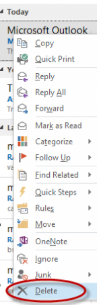 To reduce file size immediately follow the below steps:
1. To compact file size create and open a new Outlook Data File.
To reduce file size immediately follow the below steps:
1. To compact file size create and open a new Outlook Data File.
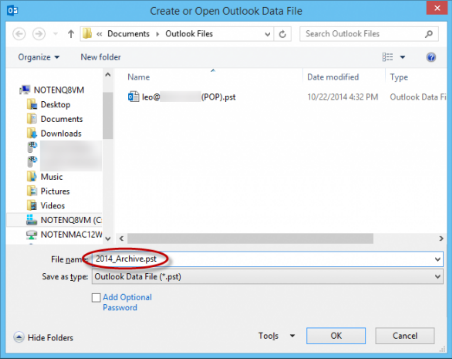 2. You can view the new PST appear in the folder pane.
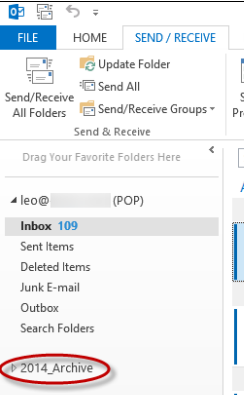 3. User can expand it, create subfolders, or drag and drop messages from old PST into New One.
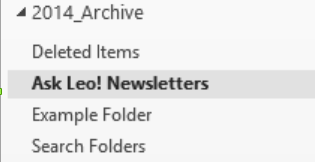 4. Users can compact the file size by clicking on the desired PST file. Then, select the data file properties.
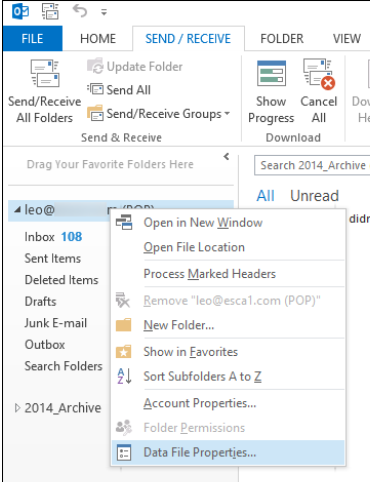 5. Now in the resulting dialog box click on Advanced Button and then in the next box click Compact Now.
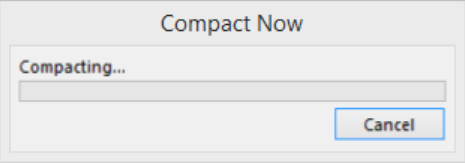
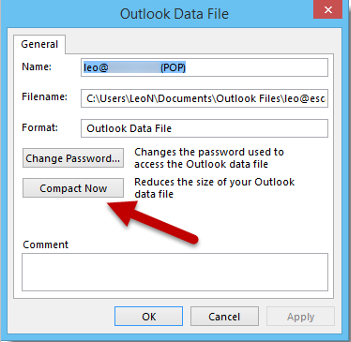 Warning : Depending on the PST file size, compacting could take hours. Make sure there is no interruption while the process is running.
It is clear that deleting data is only possible if you can open the Outlook data file. If you have a PST file that you wish to import, it is nigh impossible to do it manually. In this case, you will need the help of a professional solution to carry out this task. Of course, if the file is already corrupted due to large size, the you can try to repair PST file with and without scanpst.
Professional Tool to Reduce Size & Resolve Related Issues
With Split Software, you can split PST file by date, size, year, folder, email id, and category. Follow the steps to reduce the file size and fix the issues. 1. Launch the tool, click Add File to select the file that is too big to handle.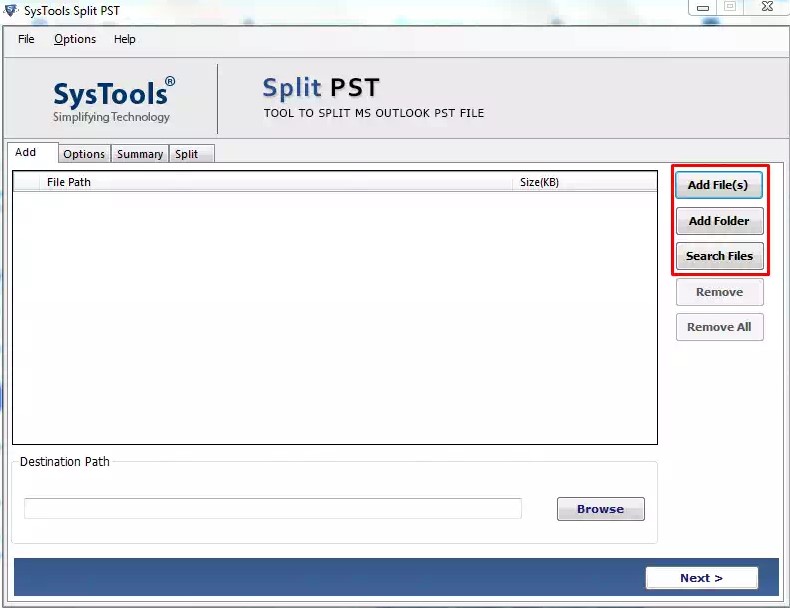 2. Choose the destination folder where the files will be saved after breaking them.
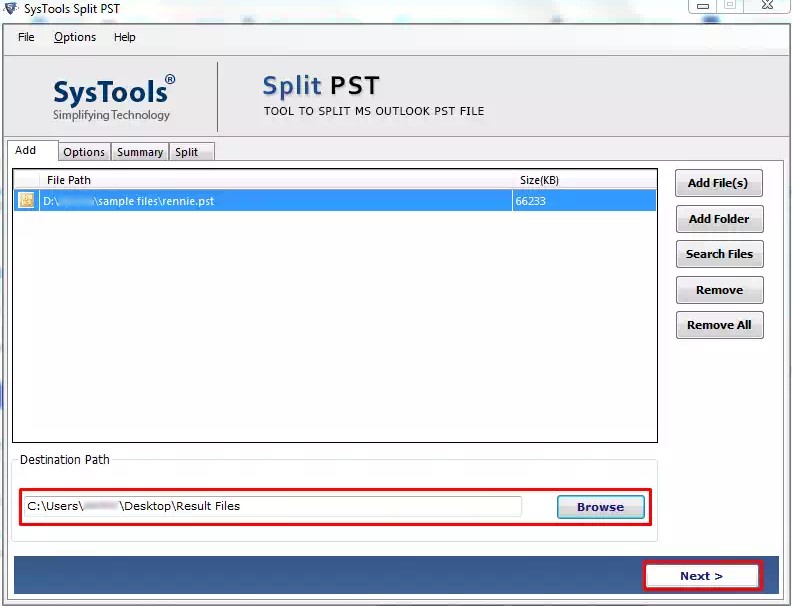
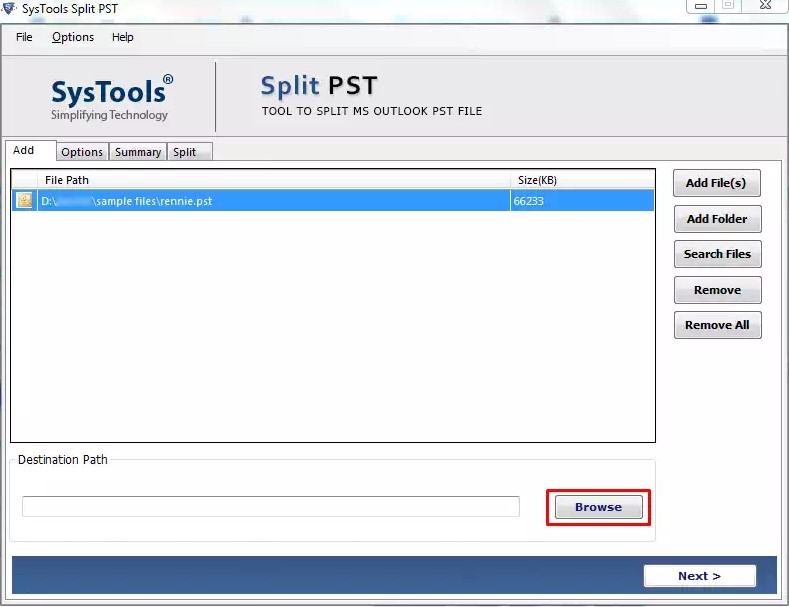 3. Click Next button to proceed to the next window.
 4. Select the option to split the file size based on different criteria.
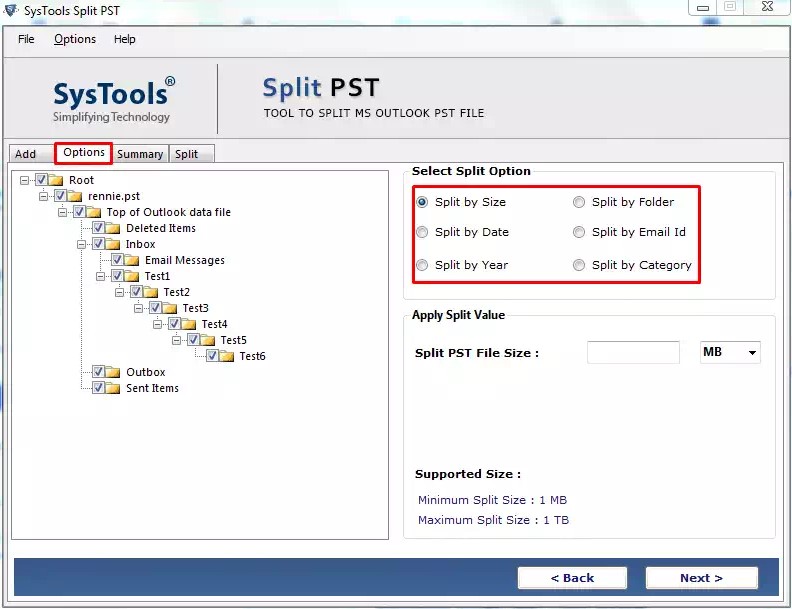 5. Input the Split value and click Next button to go to the summary window.
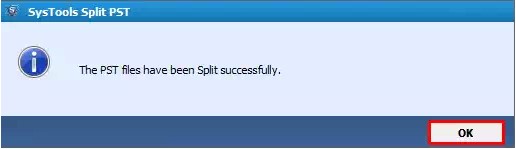
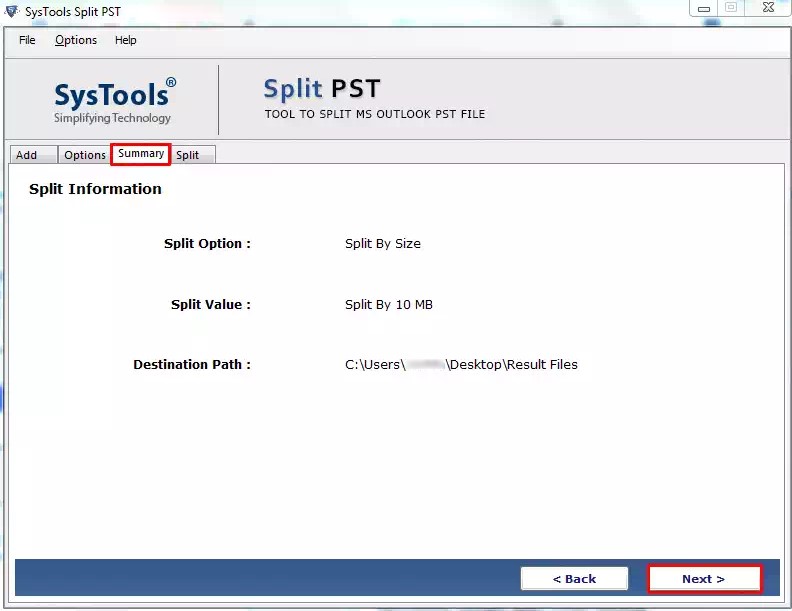 6. Click Next to start the reducing process. Press on Ok once the process completes.